Understand what each part does
Claude Desktop is the application. Code is the workspace used in the lessons. The specialized agents add the fashion instructions, project context and task workflow. fal connects the image and video models used in the taught route.
This separation helps you know where to act when a step needs attention. Installing the desktop app, adding the agents and connecting a generation provider are different tasks, each with a visible check.
Prepare a folder and choose your access
Create a fashion-studio folder where your project files can live together. Keep real source photos in originals and generated results in a separate location. Use a brand file to save decisions instead of retyping the context for each lesson.
Check the current Claude plan and generation-provider requirements. The guided course presents setup as a one-time task of about twenty to thirty minutes. That is a learner estimate; your device, download speed and account steps can change the time.
Install the official desktop application
Use the official Claude download page and choose the desktop installer for your device. Complete the installation and open the application. Follow the course screenshots to reach Code inside Desktop.
The current Anthropic documentation describes the desktop Code environment. The interface and plan requirements can change, so use the official help if your screen differs. The lesson video includes pause points so you can finish one step before continuing.
- Download from the official provider.
- Open the installed app and check account access.
- Find Code inside Desktop.
- Open the project folder used for the course.
- Confirm the workspace can find your project files.
Install the agents supplied inside the community
The course resources include the agent package and guided installation instructions. Use the current package from the setup course. Ask the workspace to confirm the installed agents before using them for a paid generation.
An agent name in a prompt is not proof that the agent is installed. Keep a concrete check: the workspace finds the instructions and can explain the task they support. The public guide is an overview; the installation package stays inside Skool.
Connect fal and check without generating
Follow the provider’s account and connection instructions. Keep keys private and enter them only in the setting or secure location named in the lesson. Check that the connection is available without launching a generation.
Before any paid attempt, ask the agent to state the model, output count and estimated cost. A connection check and a paid job are separate actions.
Help me check my fashion studio setup without generating anything. Confirm that my project folder is available, identify the installed fashion agents and explain whether the fal connection is ready. Do not display any secret value. List one missing step at a time and wait for me to complete it.
Finish with a small readiness check
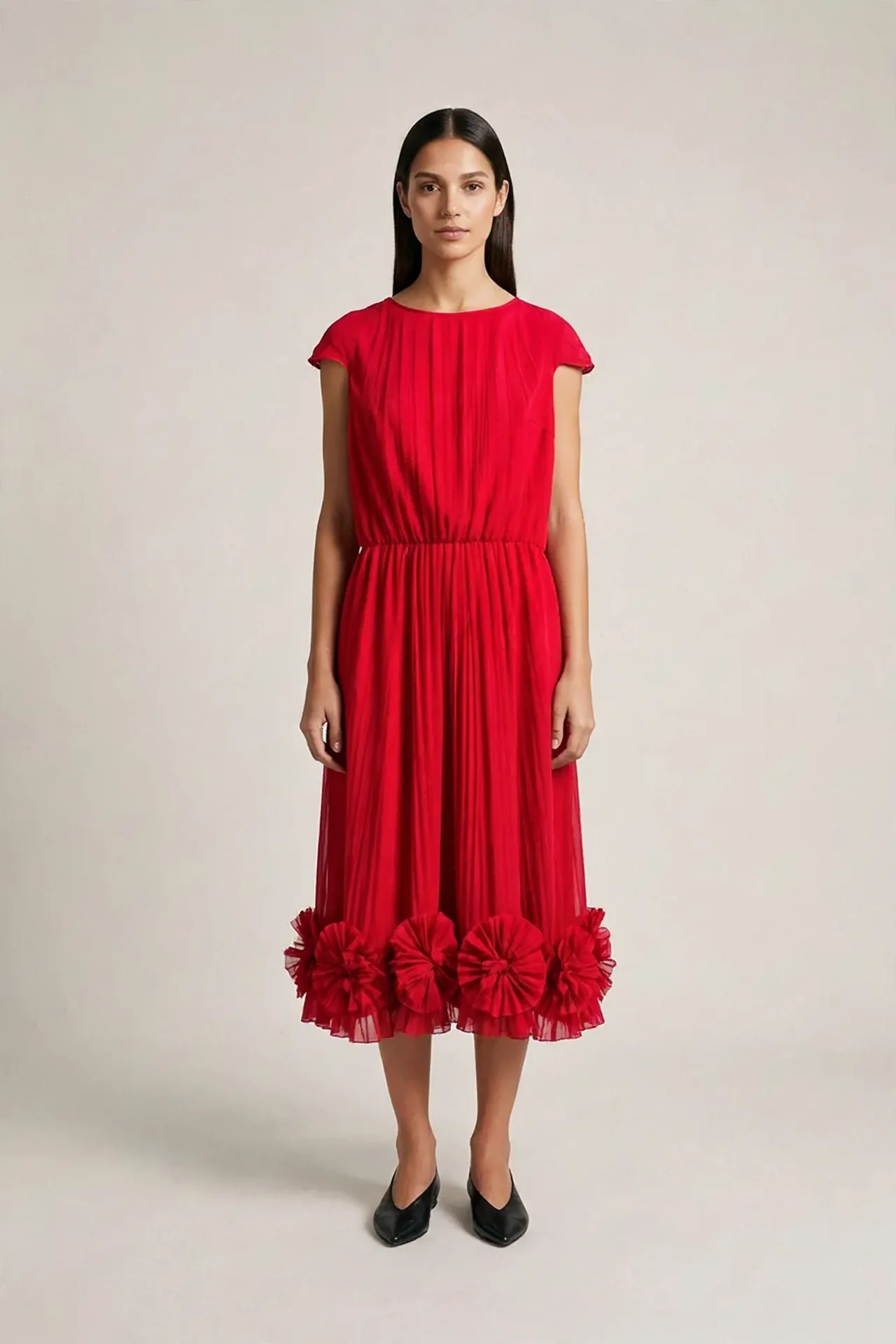
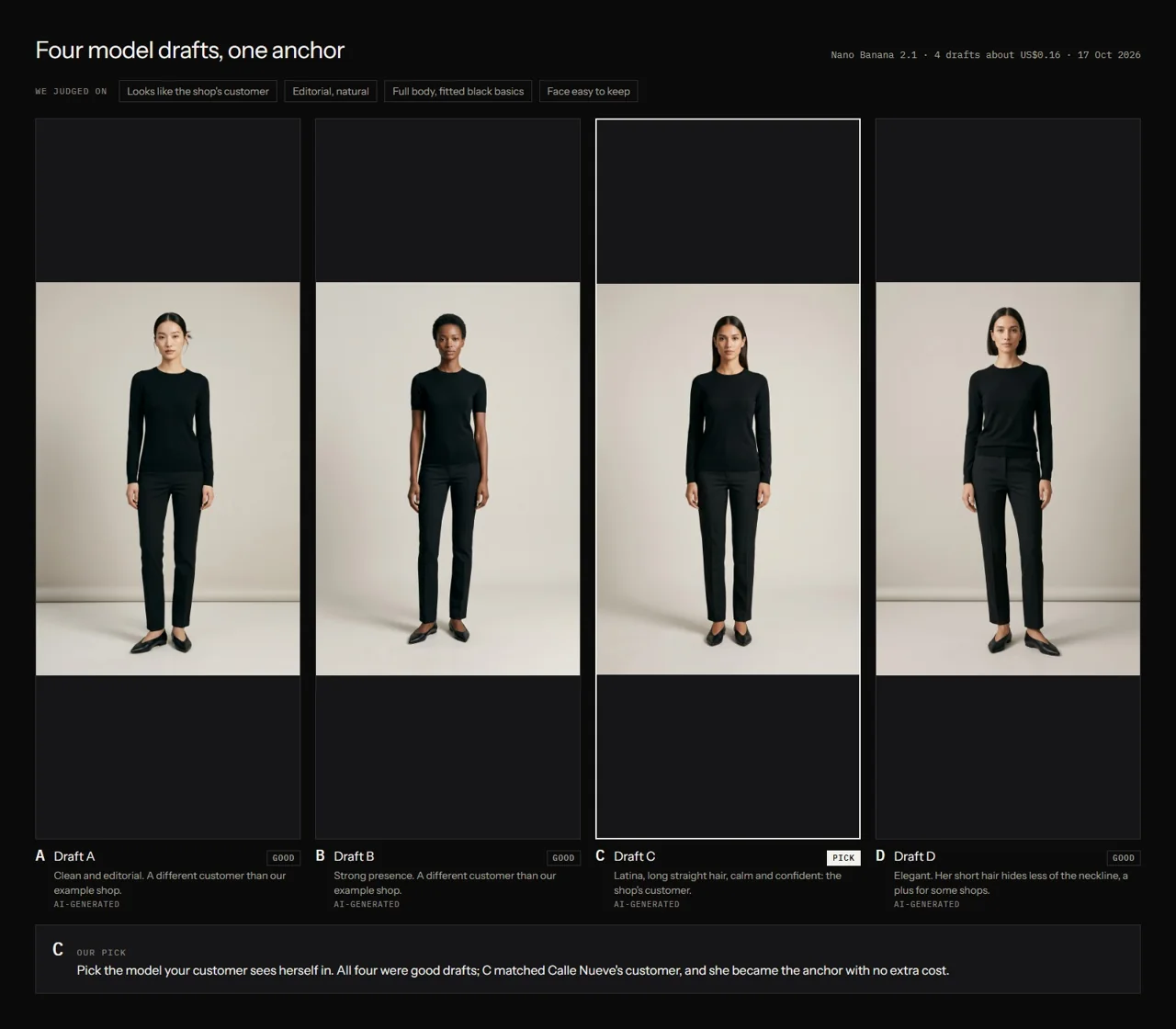
Confirm the project folder, installed agents, saved brand context and tool connection. Keep the setup notes with the project. The next mission is the first photo: one garment, one model reference and one reviewed result.
The benefit of setup is a reusable workspace. Later lessons can focus on describing, choosing and checking creative outputs through conversation. You can return to the setup pages if a provider changes or a connection needs attention.
Questions before you start
Do I need to program?
The course teaches the actions through a guided conversational workflow. Follow each setup step and use the supplied installation instructions.
Are Claude and fal included for free?
Provider access and generation may have separate costs. Check the current plans and pricing before choosing your route.
Where do I get the agents?
Use the current agent package in the setup course inside Fashion AI Skool.
Examples and sources
Adapted from Set Up Your AI Studio, its guided video and the current installation-edition agent package.
- See the Fashion AI Skool learning path
- Claude official download
- Anthropic: Claude Code on desktop
- fal documentation
- Practice garment photographs: Marcelo Verfe on Pexels
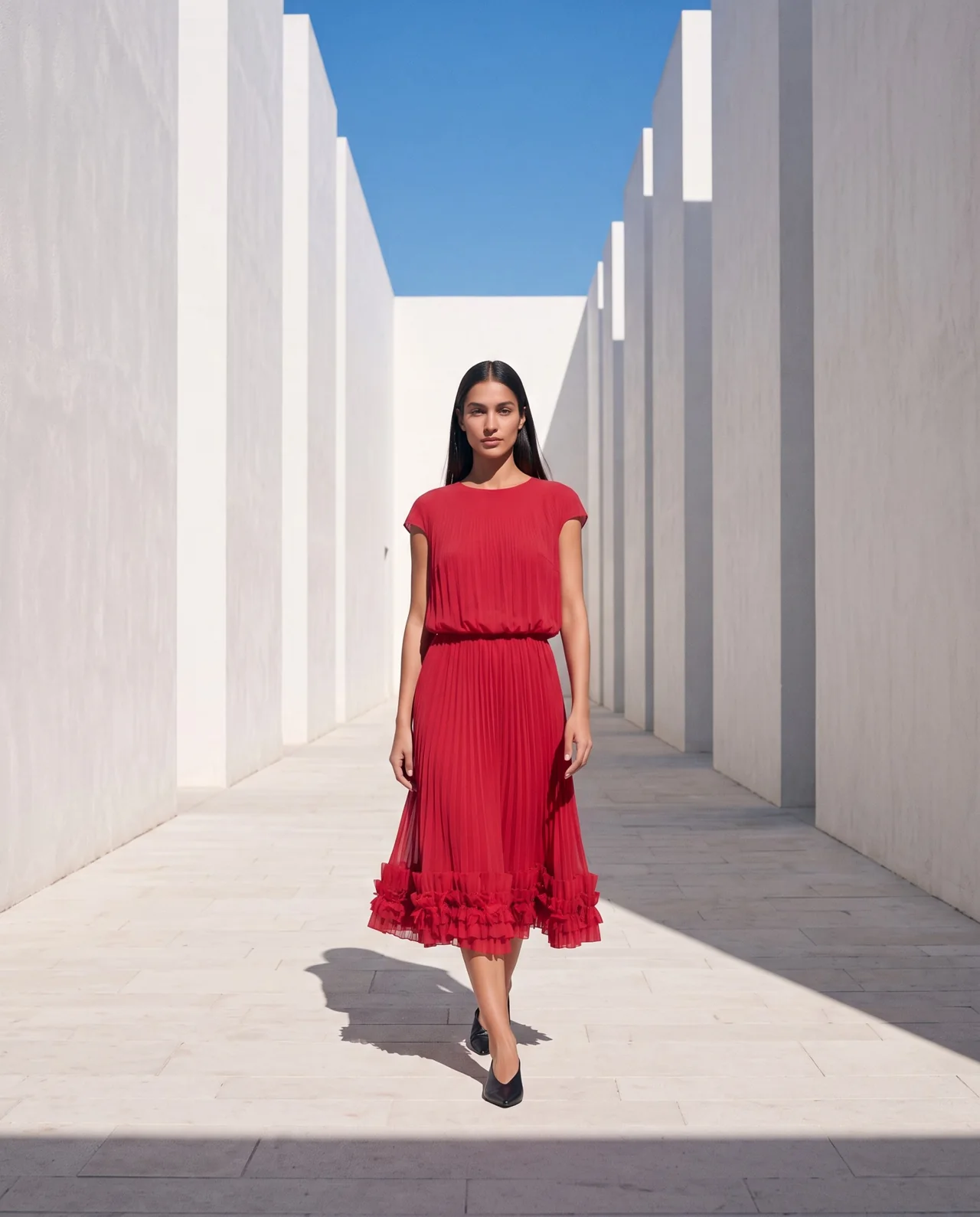
Written by Fashion AI Skool using its course materials and practice records. Updated October 20, 2026. Generated examples demonstrate a process; they do not certify unseen product details.